Support
Receiver Remote lets you control your network AV receiver from your Apple Watch: power, mute, volume, and input for each zone, plus a Smart Stack widget for quick volume changes.
Receiver Remote currently supports Yamaha receivers, with more brands planned. See Supported receivers below.
Supported receivers
Supported now
- Yamaha network AV receivers that support MusicCast, including the AVENTAGE line
Receiver Remote is tested on a Yamaha AVENTAGE RX-A6A. Other MusicCast-enabled Yamaha receivers use the same network control and should work too.
Coming next
Support for other brands will be added based on demand. If you’d like Receiver Remote to work with your receiver, email us with the brand and model — requests help decide which brands come next.
Apple Watch
- Any Apple Watch running watchOS 26 or later
- Receiver Remote runs on your watch on its own — no iPhone app needed
Requirements
- Apple Watch running watchOS 26 or later
- A supported receiver
- Your Apple Watch and receiver connected to the same home network
Getting started
When you first open Receiver Remote, you’ll see the Zones screen.
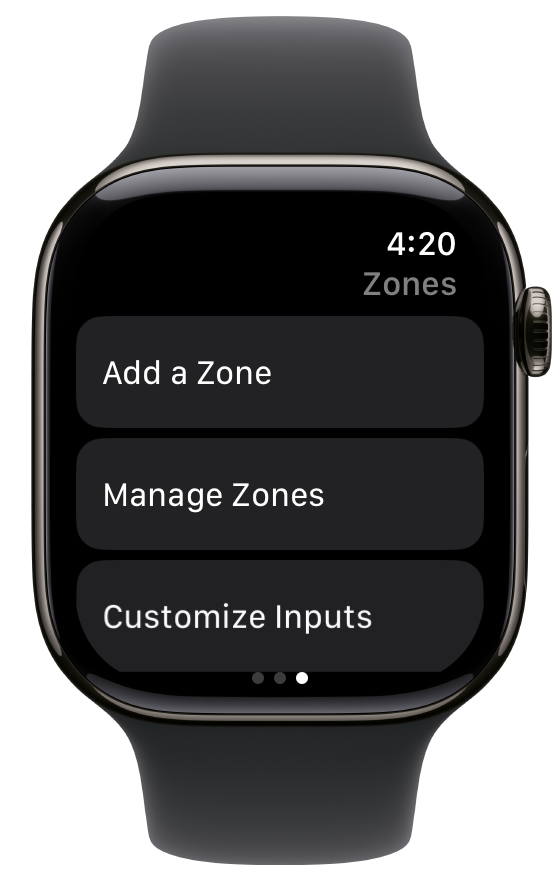
- Tap Add a Zone.
- Receiver Remote searches your network for supported receivers. Tap your receiver when it appears.
- Choose a zone (for example, Main or Zone 2) and tap Add.
- Repeat for any other zones you want to control.
The first time you search, your watch asks for permission to access your local network. Tap Allow — Receiver Remote needs this to talk to your receiver.
Adding a receiver by IP address
If your receiver doesn’t appear in the search, tap Enter IP Address instead and type your receiver’s address (for example, 192.168.1.50). You can usually find it in your receiver’s on-screen menu under its network settings, or in your router’s list of connected devices.
Using Receiver Remote
Swipe left and right to move between your zones. The Zones screen is always last.
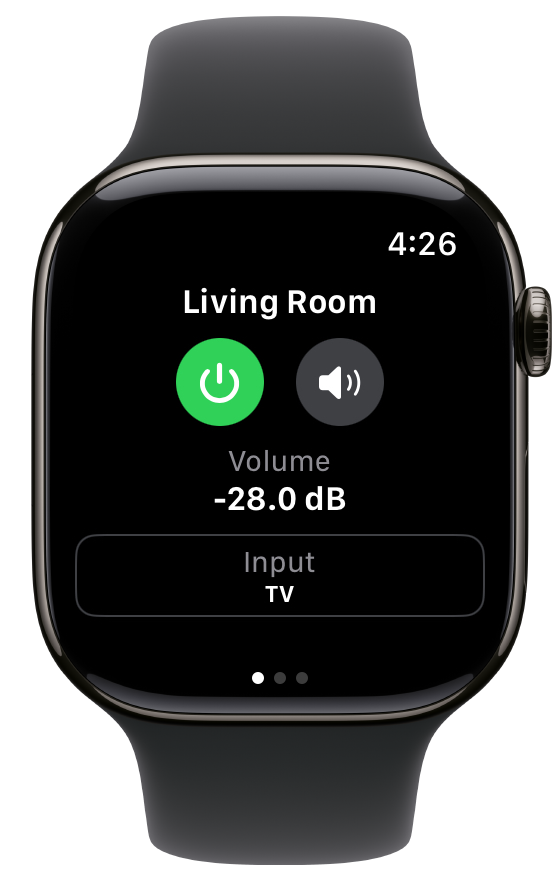
- Power — tap the power button. It’s green when the zone is on.
- Mute — tap the speaker button next to power. It’s orange when muted.
- Volume — turn the Digital Crown.
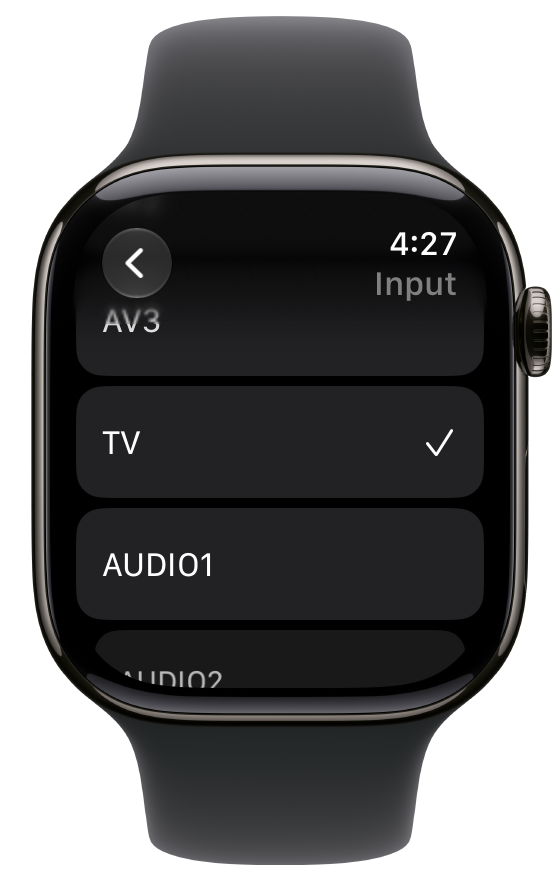
- Input — tap the Input box and choose from the list.
Customizing inputs
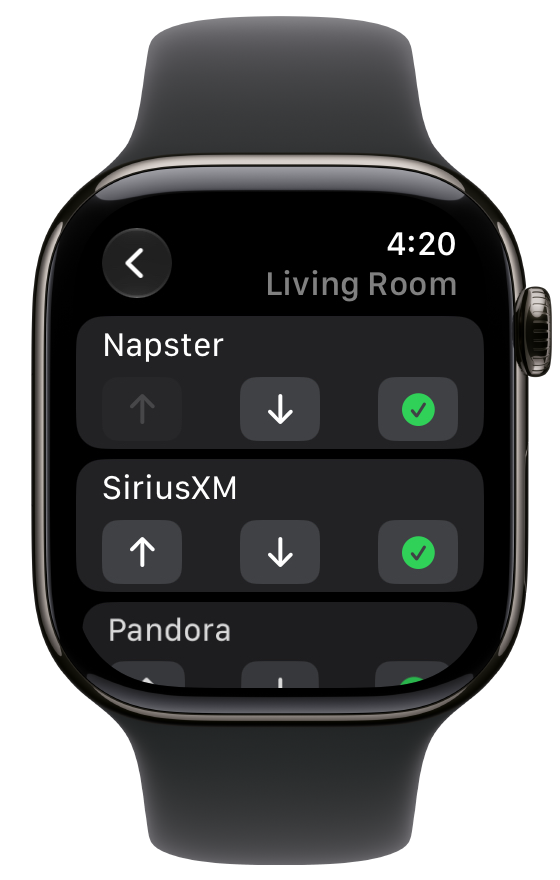
To hide inputs you never use or change their order, go to Zones → Customize Inputs and choose a zone.
- Tap the check mark to show or hide an input. Shown inputs stay at the top.
- Use the up and down arrows to change the order.
Only shown inputs appear when you tap the Input box.
Managing zones
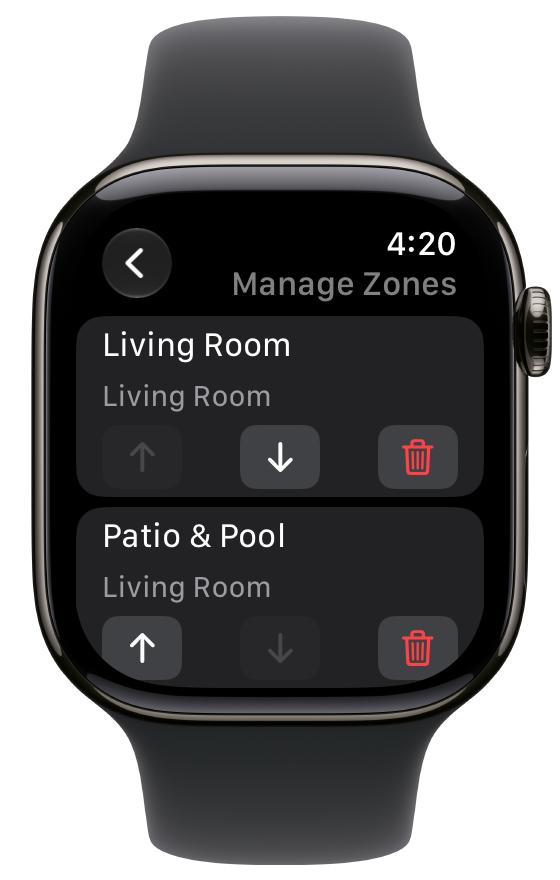
Go to Zones → Manage Zones to reorder your zones with the up and down arrows, or remove a zone with the trash button.
Smart Stack widget
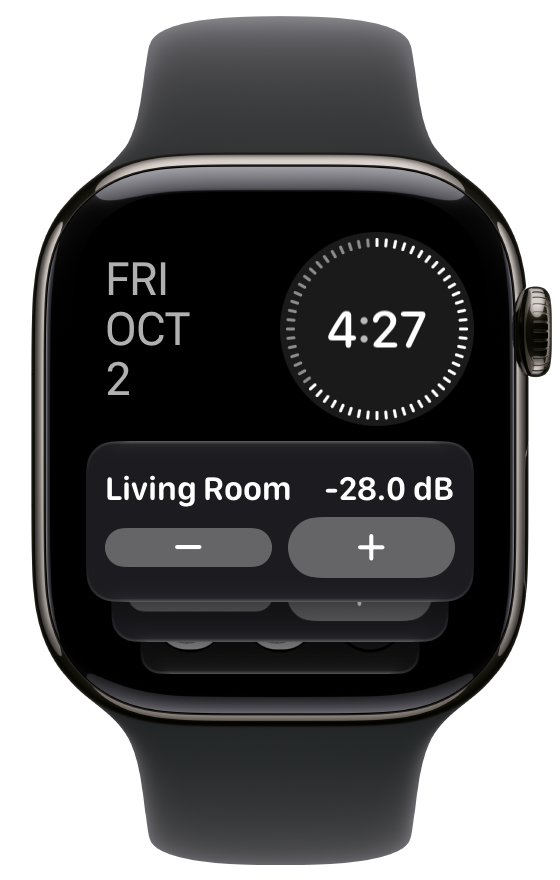
Add the Receiver Remote widget to see a zone’s volume and adjust it without opening the app:
- From your watch face, turn the Digital Crown to open the Smart Stack.
- Touch and hold the stack, then tap +.
- Find Receiver Remote and choose a zone.
Tap − or + to change the volume, or tap the widget to open that zone in the app.
Troubleshooting
A zone says “Not reachable.” Make sure your receiver is plugged in and connected to your network, and that your watch is connected to the same network. If your receiver’s IP address changed, remove the zone and add it again. Setting a reserved (static) address for your receiver in your router prevents this.
The search doesn’t find my receiver. Check that local network access is allowed for Receiver Remote. If your receiver is on a separate network from your watch — for example, a guest or “IoT” network — the search can’t see it, but adding it by IP address still works as long as your network allows traffic between the two.
The widget shows an old volume. watchOS limits how often widgets refresh. The widget updates when you use its − and + buttons, and when you leave the app.
Contact
Questions or problems? Email SUPPORT_EMAIL_PLACEHOLDER.
Receiver Remote is an independent app and is not affiliated with, endorsed by, or sponsored by any receiver manufacturer. Yamaha, AVENTAGE, and MusicCast are trademarks of Yamaha Corporation. All other trademarks are the property of their respective owners.